模态是除导航之外的另一种重要的信息呈现方式,它通常以一种临时的界面和用户交互。如果把导航栈内的界面比作“主线”的话,模态就是分出来的“支线”。模态视图完成它的使命后,用户最终会回归至“主线”情景。
关于模态的更多设计语言以及使用场景,可以参考 《人机界面指南》。
以下将介绍 SwiftUI 在不同平台上常用的模态视图。
Sheet
Sheet 有以下两个修饰器方法:
onDismiss 都是可选的,表示 sheet 视图消失时的回调。
第一个方法的使用如下:
 1
 2
 3
 4
 5
 6
 7
 8
 9
10
11
12
|
@State private var isPresented = false

Button {
  isPresented.toggle()
} label: {
	...
}
.sheet(isPresented: $isPresented) {
  printLog("Dismissed")
} content: {
  SheetView(isPresented: $isPresented)
}
|
isPresented 为 true 时,SheetView 实例会呈现,反之则消失。
> 查看示例
SheetView 可以通过如下两种方式消失:
 1
 2
 3
 4
 5
 6
 7
 8
 9
10
11
12
13
14
15
16
|
fileprivate struct SheetView: View {
  @Binding var isPresented: Bool
  @Environment(\.dismiss) var dismiss

  var body: some View {
    VStack(spacing: 20) {
      Button("isPresented") {
        isPresented.toggle()
      }

      Button("dismiss") {
        dismiss()
      }
    }
  }
}
|
第二个方法中的 item 参数类型为 Binding<Item?>,content 闭包内获取的是非空的 item 值。它非常适合于可选类型的数据绑定,比如从服务器获取版本升级信息,其模型定义如下:
1
2
3
4
5
|
fileprivate struct VersionInfo: Identifiable {
  let id = UUID()
  var version: String
  var desc: String
}
|
服务端返回的该字段可能为空,我们想要实现该字段有值时显示升级信息,反之则不显示:
 1
 2
 3
 4
 5
 6
 7
 8
 9
10
11
12
13
14
15
|
@State private var versionInfo: VersionInfo?

Button {
  versionInfo = .init(version: "1.0.1", desc: "Bug fixes.")
} label: {
	...
}
.sheet(item: $versionInfo) {
  printLog("Dismissed")
} content: { versionInfo in
  Text("版本升级信息")
  .onTapGesture {
    self.versionInfo = nil
  }
}
|
Sheet 视图默认是尽可能的铺满屏幕高度的,通过如下两个方法可以控制其停留在多种不同的高度:
1
2
3
4
5
6
|
func presentationDetents(_ detents: Set<PresentationDetent>) -> some View

func presentationDetents(
    _ detents: Set<PresentationDetent>,
    selection: Binding<PresentationDetent>
) -> some View
|
detents 是集合类型,表示 sheet 视图可以停留在不同高度。第二个方法中的 selection 参数可以通过程序控制 sheet 视图停留在指定高度,具体效果见示例。
PresentationDetent 支持以下几种样式:
- 内置样式
.large:屏幕高度。.medium:屏幕高度一半。
- 自定义样式:
.fraction(_:):相对屏幕一定比例的高度。.height(_:):绝对高度。custom<D>(_ type: D.Type):自定义样式。
最后一种样式的使用方法:
1
2
3
4
5
6
7
|
fileprivate struct CustomDetent: CustomPresentationDetent {

  static func height(in context: Context) -> CGFloat? {
    printLog(context.maxDetentValue)
    return min(750, context.maxDetentValue)
  }
}
|
这段代码表示,自定义的 Detent 样式取 750 和屏幕最大高度的较大值,如果 750 已经大于屏幕高度,那么 sheet 视图就是屏幕高度。
虽然 .presentationDetents 支持多个平台,但据笔者测试,目前只在 iPhone 设备上有效果。
此外,使用方法 .presentationDragIndicator(.visible) 可以在 sheet 视图上显示一个表示可拖拽的指示条,提供更好的用户体验。
如果需要禁止使用手势让视图消失,调用这个方法:interactiveDismissDisabled(_:) 。
iOS 16.4/macOS 13.3 新增了以下几个方法增强了 sheet 的交互性,具体效果参见示例。
 1
 2
 3
 4
 5
 6
 7
 8
 9
10
|
// 自定义背景
.presentationBackground(.regularMaterial)
// 设置背景的可交互性
.presentationBackgroundInteraction(backgroundInteraction.value)
// 设置 sheet 的交互
.presentationContentInteraction(contentInteraction.value)
// 设置在 compact size 上的尺寸
.presentationCompactAdaptation(compactAdaptation.value)
// 设置圆角
.presentationCornerRadius(30)
|
Alert
理解了 Sheet 之后,Alert 就相对简单,具体可以直接看示例和源码。
此外,示例中没有演示如下两个方法:
其中 presenting data: T? 都是可选参数,这和上面 Sheet 提到的可选参数 item 是类似的,省去了我们对可选参数进行解包的操作。
Dialog
见示例,略。
Inspector
iOS 17/macOS 14 新增了几个名为 inspector 的方法,见 Presenting an inspectorin page link。
比起 Sheet,它对不同平台有更好的适配效果:
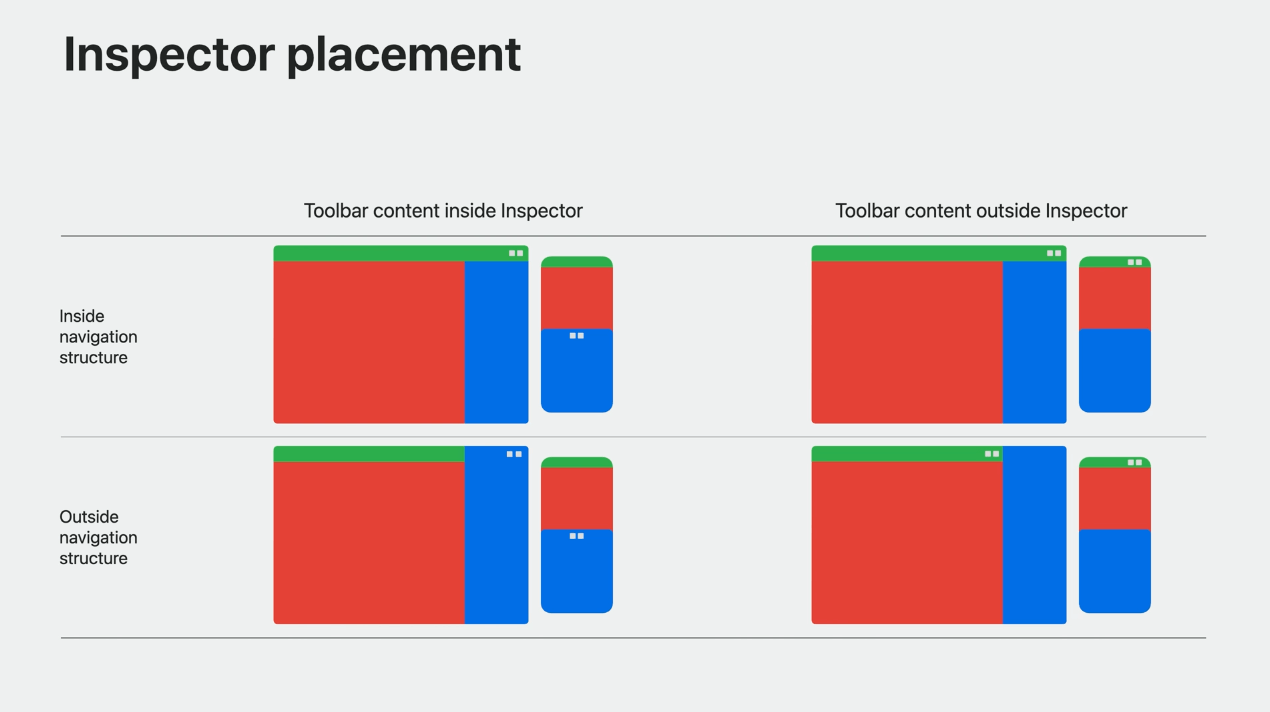
使用比较简单,可以直接观看这个 Session:Inspectors in SwiftUI: Discover the details。